Application in UIS "Course Templates"
The application is available under the "Basic information" tab for individual courses.
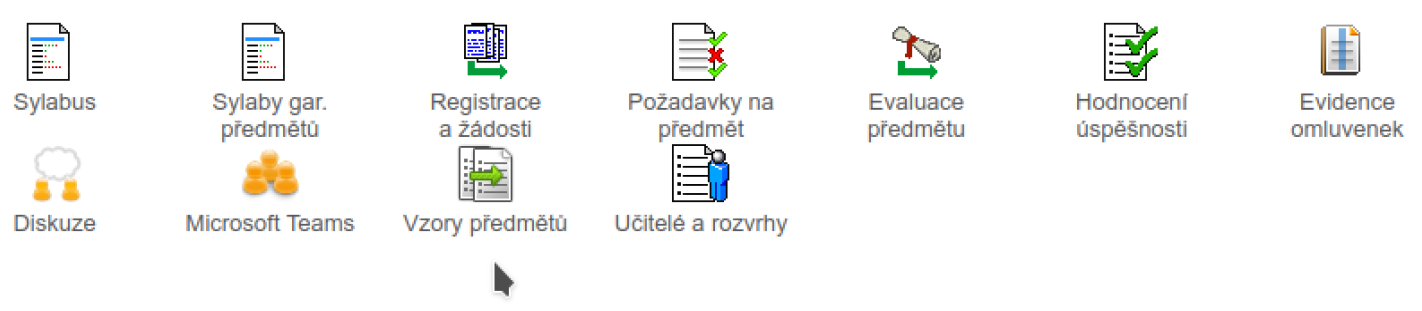
A template allows grouping various activities from the Teacher's Record Book applications within one course and their subsequent application to other courses available to the teacher within the current or future period.
A template may include continuous assessment sheets, submission folders, topic schedules, e-tests,
eLearning outlines and automatic assessment.
The template is created in a course where the necessary teaching activities are prepared, which are intended to be used in other courses as well. Within one course, it is possible to prepare multiple templates with different activities (for example, for practical exercises or for the entire course).
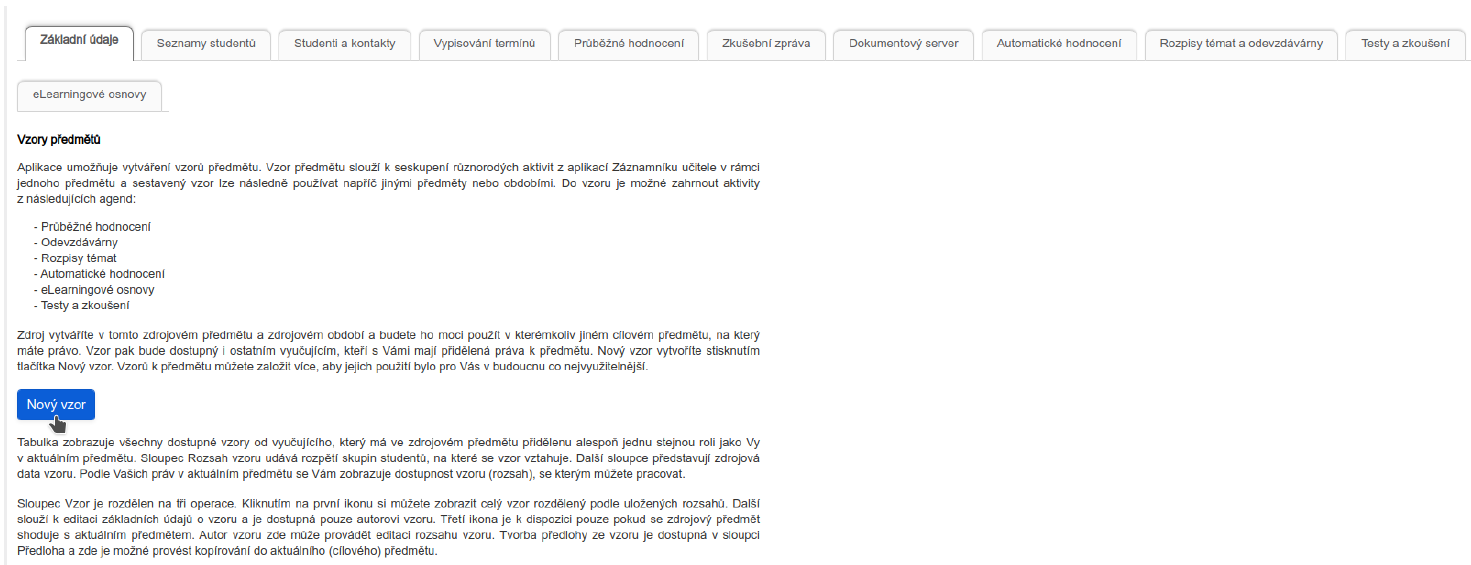
Creation procedure – source course (from which we want to copy settings):
- Click the "New template" button.
- Select the source student group (lecture, practical exercise or all students).
- Under the "Include in template" tab, select the activities that should be transferred.
- Under the "Final template appearance" tab, a preview is available.
- Save the settings by clicking the "Save selected activities continuously" button.
Creation procedure – target course (to which we want to copy settings):
- Click the icon in the "Template" column for the selected template.
- Under the "Include in template" tab, check and, if necessary, modify the parameters.
- Under the "Final template appearance" tab, a preview is available.
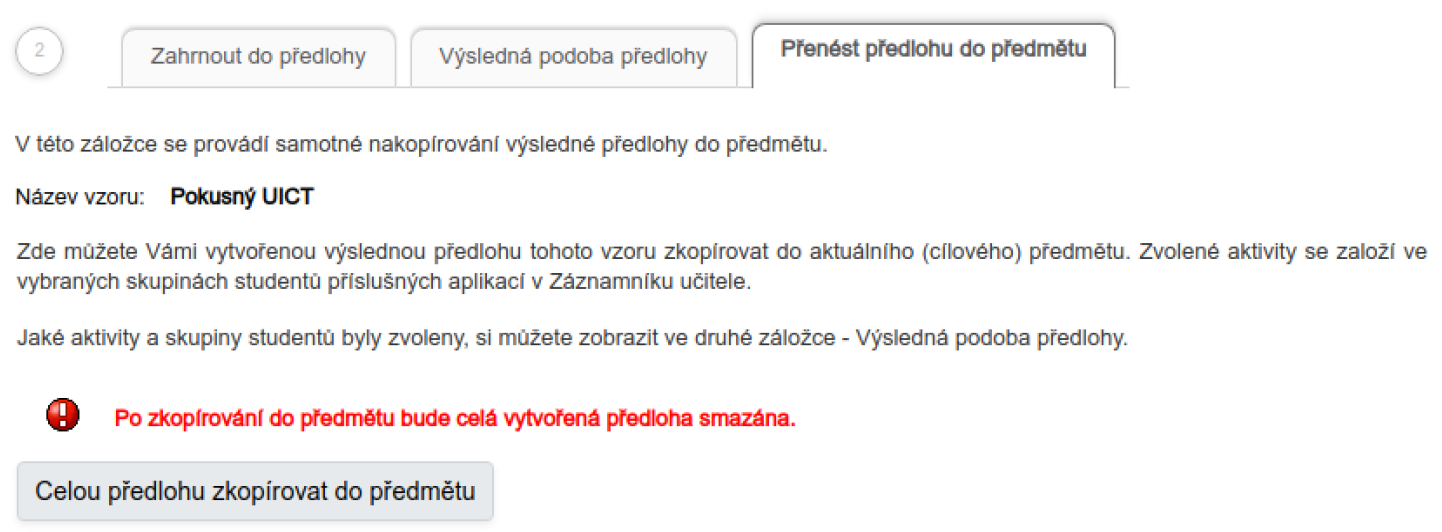
- Transfer the template to the course in the "Transfer template to course" tab by clicking the "Copy the entire template to the course" button and then "Confirm transfer".
Instructions in PDF here .